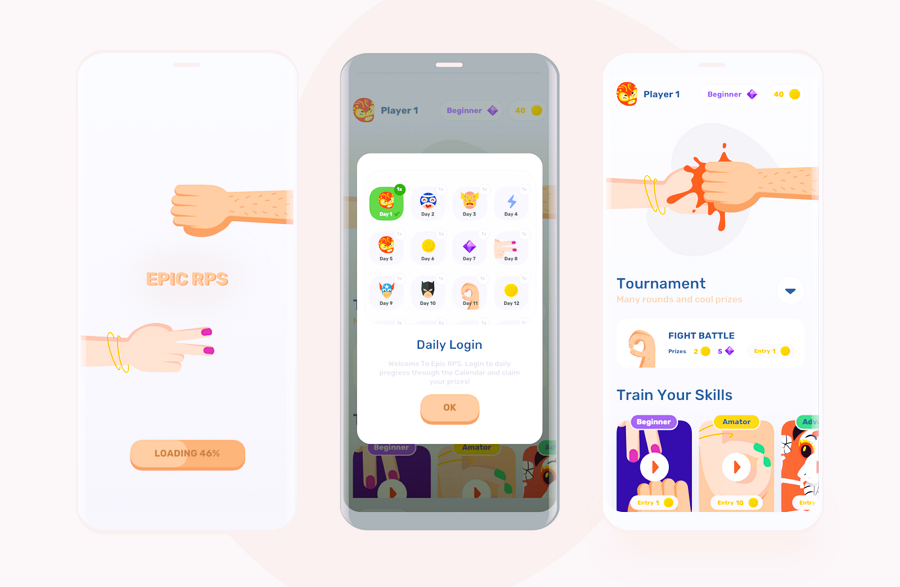

When designing mobile game user interfaces (UIs), one of the most critical aspects is ensuring that your game is touch-friendly. Unlike desktop games, where the interaction typically involves a keyboard and mouse, mobile games rely on intuitive touch gestures. This makes it essential for game designers to create interfaces that are both functional and easy to navigate on small screens. In this article, we’ll dive into essential tips for designing touch-friendly game UIs and improving the player experience.
1. Prioritize Simplicity and Minimalism
The smaller screen size of mobile devices demands a more minimalist approach to UI design. Avoid clutter and focus on the most essential elements that players need to interact with. When designing your game’s interface, think about the key elements that need to be visible at all times, such as:
- Action buttons (jump, shoot, move)
- Health bars and score counters
- Menus and in-game settings
By minimizing the number of elements on the screen, you reduce distractions and improve gameplay by allowing the player to focus on the action. You can hide secondary features in accessible, off-screen menus to prevent them from overwhelming the player.
2. Make Buttons Large and Easy to Tap
One of the primary factors in touch-friendly game UI design is ensuring that buttons are large enough to be tapped easily. Mobile users use their fingers, which means you must account for the precision (or lack thereof) of touch input. Make sure all interactive elements, such as buttons, icons, and menus, are sufficiently sized to reduce errors and improve user experience.
According to the Fitts’s Law, the time it takes to reach a target is inversely proportional to the size of the target and directly proportional to the distance. In simpler terms, bigger buttons that are closer to the user’s thumb will result in a faster, more responsive experience.
3. Optimize for Different Screen Sizes
Mobile devices come in many shapes and sizes, and your game should be adaptable to all of them. Designing for a single screen resolution may work for a specific device, but it limits the accessibility of your game. To create a truly touch-friendly experience, design your game UI to be responsive and scalable, adapting to various screen sizes and orientations.
Using relative units, like percentages, instead of fixed pixel sizes, allows your UI to adjust to different screen resolutions. Tools like auto-layouts in design software can help you achieve responsiveness for all device types without sacrificing usability.
4. Incorporate Gestures and Swipe Actions
One of the most significant advantages of touch interfaces is the ability to incorporate gestures. Rather than relying solely on buttons, mobile games can utilize gestures such as swipes, taps, pinches, and long presses to create an immersive experience.
For example, in a racing game, swiping left or right can control the car’s direction, while pinching could zoom in or out on the map. Be sure to make gesture-based controls intuitive and offer players a clear tutorial or hints on how to use them. Overloading players with too many gestures can create confusion, so limit gestures to the most essential actions.
5. Ensure Easy Navigation with Clear Menus
Navigation is key to mobile games. Your menus should be intuitive and easy to navigate, even when players are on the move. Ensure that important game modes, settings, and progression options are easily accessible from any screen, with minimal taps required.
Consider using:
- Bottom navigation bars for quick access to key features
- Hamburger menus for secondary options and settings
- Floating action buttons that allow easy access to core actions
Avoid requiring players to navigate through multiple layers of menus. Streamlining the experience makes it faster and more enjoyable for players to interact with your game.
6. Use Color and Contrast to Guide Players
Effective use of color can guide players through your UI and highlight interactive elements. Bright colors like green, blue, or orange can be used for buttons or actionable features, while neutral tones like gray or black can be used for background elements. Contrast is essential for making sure that UI elements are distinguishable, especially for users with visual impairments. Read our article to learn how to create beautiful and functional game maps using Armature.
Color and contrast can also be used strategically to convey important game information, such as:
- Red for danger or low health
- Green for healing or positive feedback
- Yellow or gold for achievements and rewards
Make sure that the design doesn’t become overwhelming. Colors should be balanced and harmonized for the best user experience.
Designing a touch-friendly mobile game UI requires a balance of functionality, accessibility, and visual appeal. By following these best practices, game designers can create intuitive and enjoyable experiences that enhance gameplay and reduce frustration. From prioritizing simplicity and large buttons to incorporating gestures and providing immediate feedback, each element of the game’s interface plays a crucial role in the overall player experience. Always remember that testing is key, and continually refining your design based on player feedback will help create the best possible mobile gaming experience.